Cynnet is a clean WinUI app for Windows that handles the entire server setup for you. Pick your settings, click create, and you're done.
Features
Cynnet focuses on making the server creation process fast, clean, and straightforward.
Choose from supported server types with more coming in future updates.
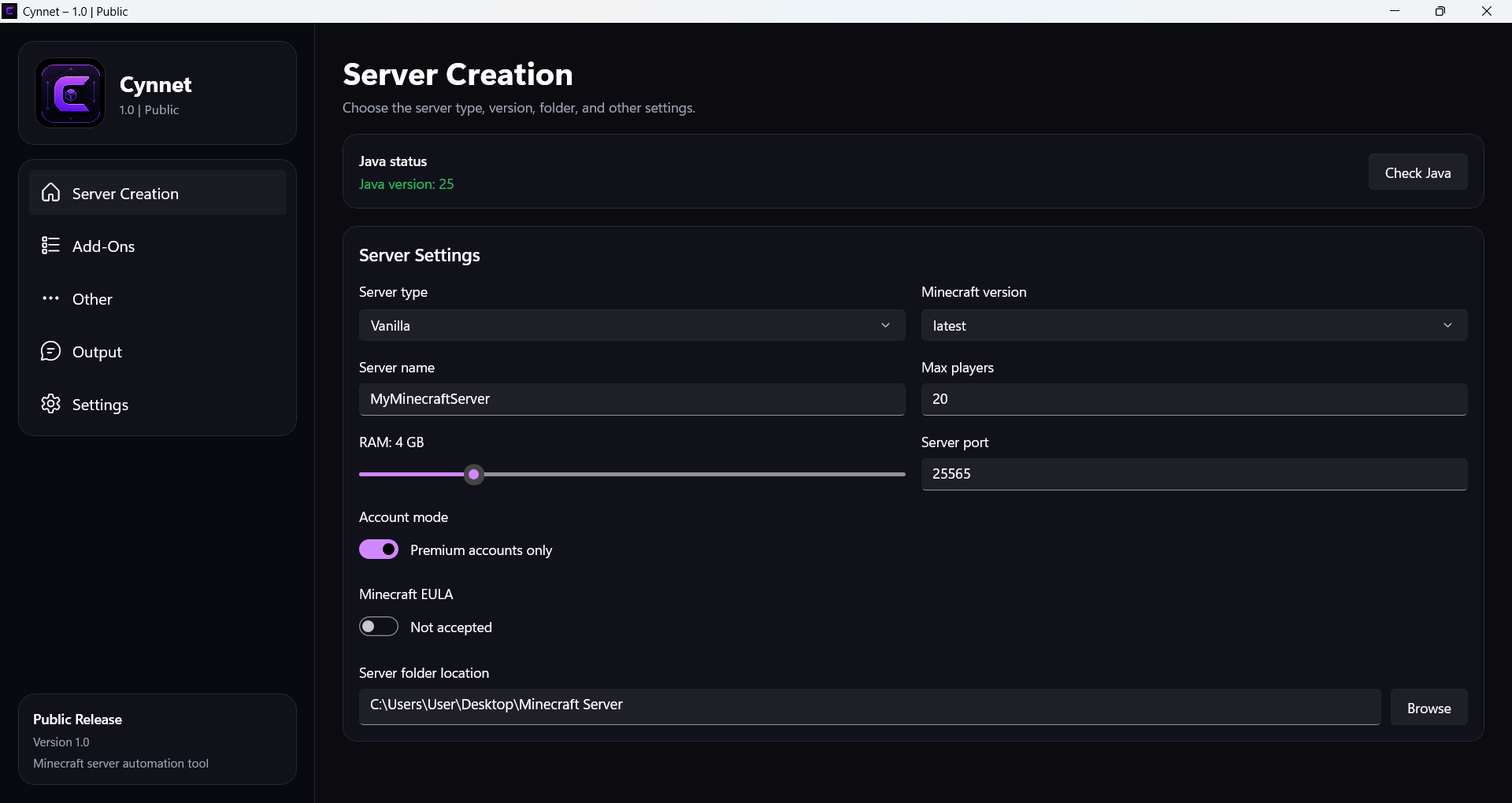
Server name, max players, RAM slider, port, account mode, and EULA — all in one place.
Picks and downloads the correct server .jar for your chosen type and version.
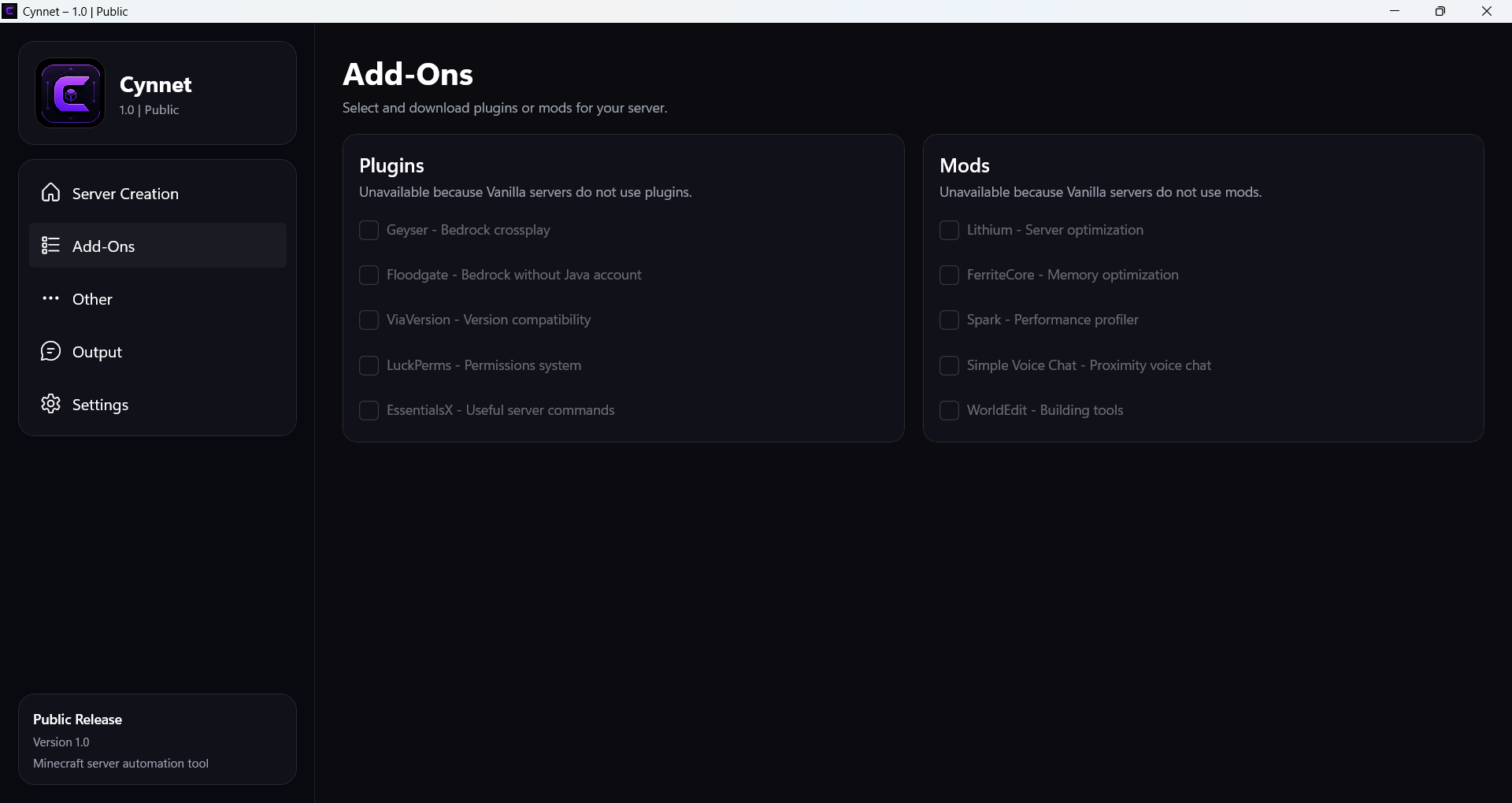
Built-in sections for selecting common plugins and mods for your server.
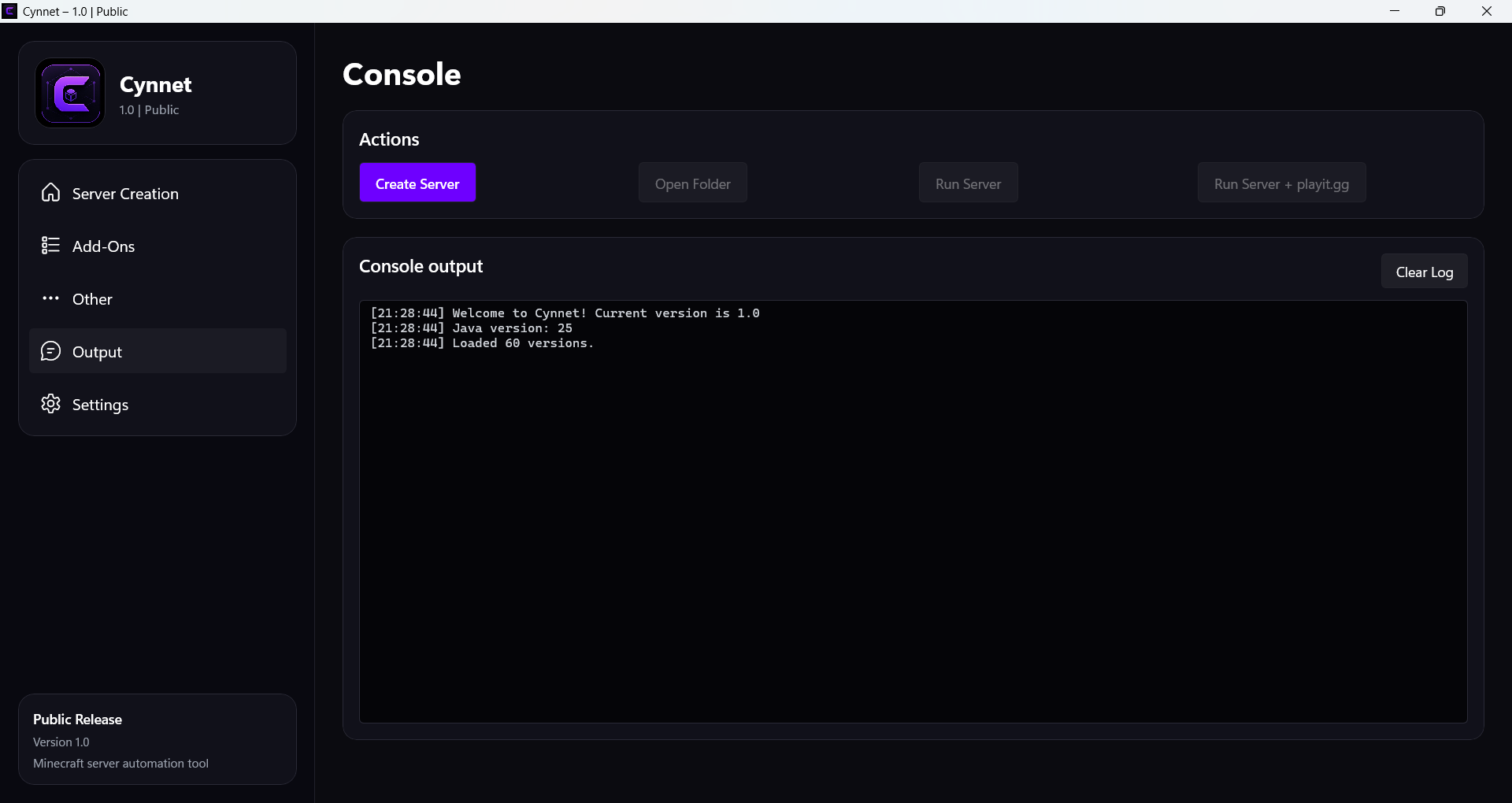
View server output directly inside the app. No need for a separate terminal window.
One-click buttons to open the server folder or start the server right from the app.
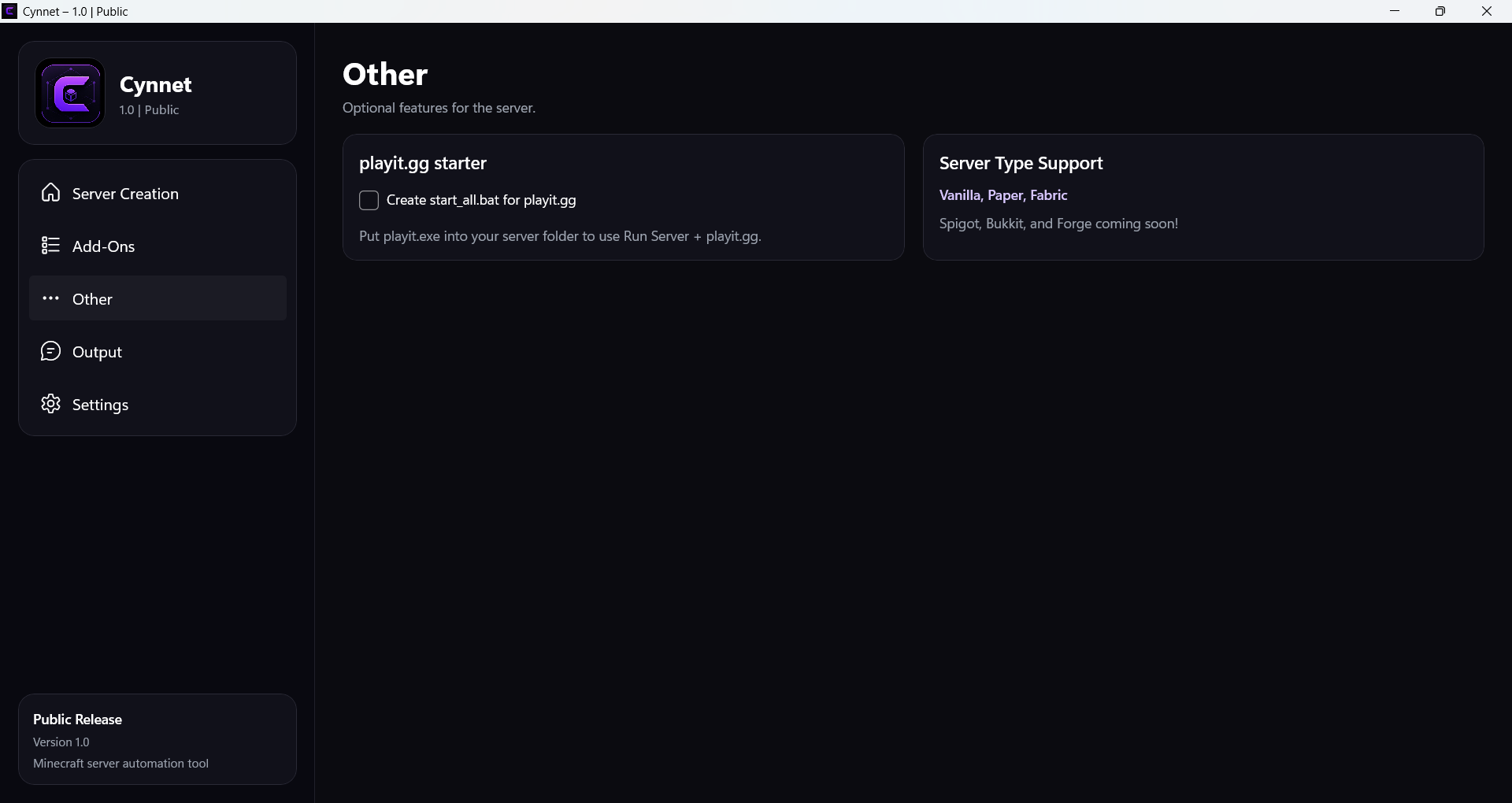
Optional playit.gg starter file generation for easy remote access.
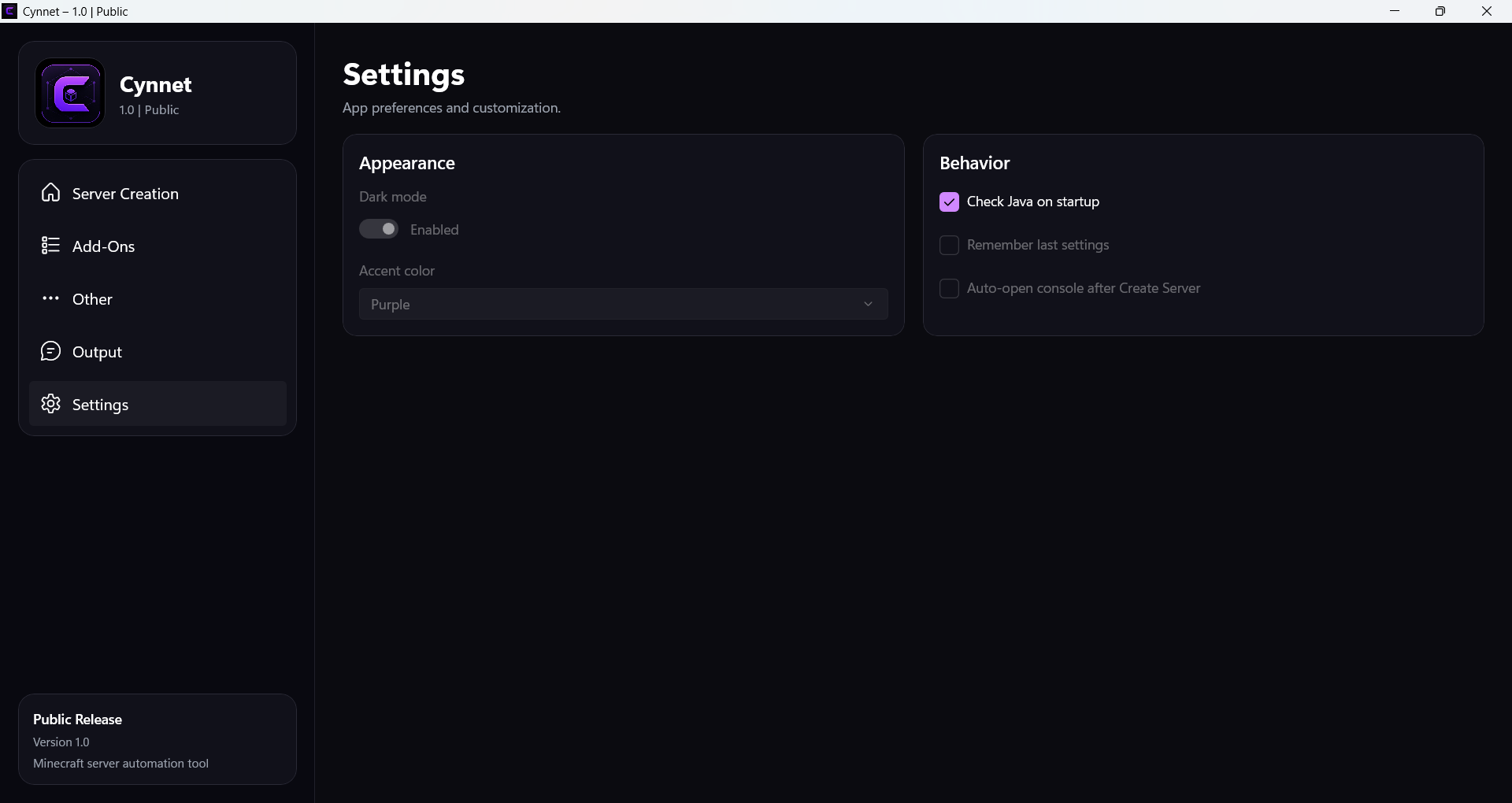
Detects your Java version on startup so you know you're ready to go.
Screenshots
A look at each section of the app. Click any screenshot to view it full-size.
Getting Started
No manual file editing, no hunting for download links. Just follow these steps.
Launch the app. It will check for Java automatically if the option is enabled in settings.
Pick Vanilla, Paper, or Fabric from the server type dropdown, then select your Minecraft version.
Set the server name, max players, RAM allocation with the slider, port number, and account mode.
Check the Minecraft EULA box if you want the server to start immediately after creation.
Head to the Add-Ons tab to select plugins or mods. In Other, you can enable the playit.gg starter.
Click Create Server in the Output tab. Once done, use Open Folder to view files or Run Server to start.
Server Types
More types will be added in future updates as the project grows.
Requirements
Make sure your system meets these requirements to run Cynnet and the generated servers.